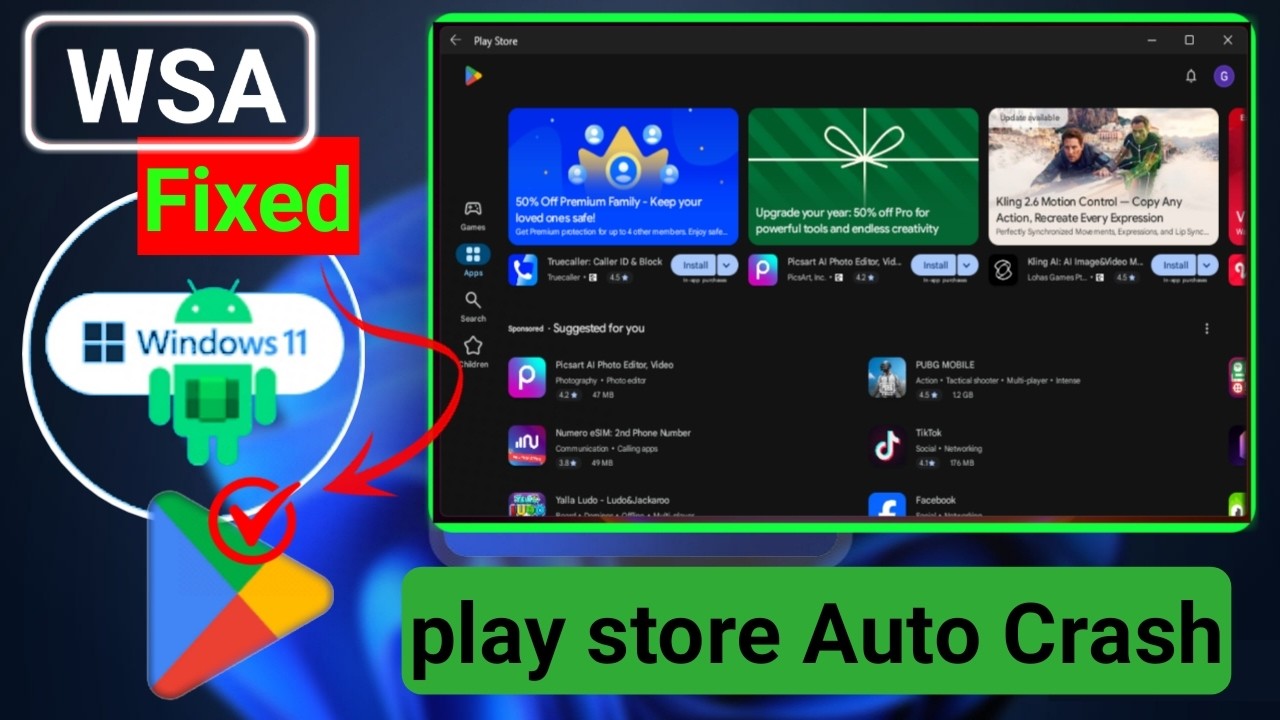
Troubleshooting WSA: Crashes, KB Updates & Repair
Symptom: Apps Close Immediately
Often caused by a Windows Update that shifted the subsystem's expected environment, or a GApps build incompatibility. First try the WSA Installer repair dialog (detect → stop → backup → reinstall).
Symptom: WSA Won't Start After a KB Update
- Updates like KB5062553 have broken GApps builds
- Fix: repair WSA, or switch to a NoGApps + Aurora Store setup
- Fix: re-run WSA Installer's Play Store patch
Symptom: Black Screen / No Display
Usually a GPU/driver issue. Update your NVIDIA/AMD/Intel drivers, then restart WSA. If it persists, force software rendering as a test.
Symptom: Play Store Crashes Installing Apps
Clear Play Store / Play Services data from Android Settings, or switch to NoGApps + Aurora Store. WSA Installer's repair flow resets these cleanly.
The 4-Step Repair Dialog
- 1) Detect the installed WSA
- 2) Stop all WSA processes
- 3) Backup user data
- 4) Uninstall and reinstall WSA
Prevention
Keep bundle.wsa handy, pause major Windows Updates on critical machines, and snapshot the working subsystem before updating GPU drivers.
Related Posts
Running WSA on Windows 10 with WSAPatch
Windows 10 isn't officially supported — but WSA Installer's WSAPatch fix makes it work by binary-patching WsaClient.exe.
WSA Without Play Store: NoGApps + Aurora Store
When GApps breaks after a Windows update, the NoGApps + Aurora Store path keeps your apps installing cleanly.
What Is Windows Subsystem for Android (WSA)?
A plain-language introduction to WSA: what it is, why Microsoft built it, and how it lets you run Android apps on Windows 11.